 |
clearString neatComponents
|
|
clearString neatComponents The Layout Manager |

| ||
| Application Development | |
The Layout Manager | ||
| |
The Layout Manager controls the website's structure. It has two main tasks.
- Pages-tab Control: enables the designer to add, delete, move and rename secure pages, sections and other components in the website.
- Layout-tab Control: enables the designer to control Navigation, and other Layout Elements.
In understanding how the Layout Manager works it is important to see how the Layout Elements interact with the pages on the website.
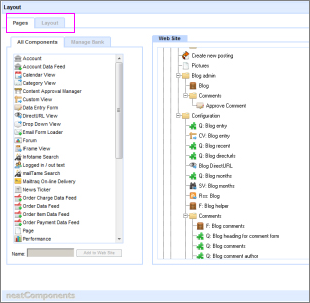
At its most simple an application or web site is a series of 'pages'. These pages are linked together and are ordered in to a hierarchy.
All Components tabs
The Pages-tab allows you to add a component from the Component to the Web Site. When you add a component to the site there is an associated position in the site. This particular component is either above or below another component.
There can be complex, branching relationships in a tree of positions, but every component has a position associated with it.
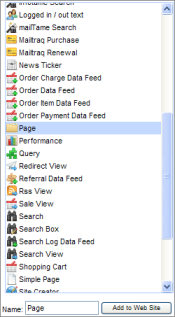
The act of moving the 'page' from All Components into the 'Web Site' places the page in relation to all the other pages. The System is aware of the relationship between the pages of the site, and this 'awareness' is made available to the website designer as Navigation.
Manage Bank tab
The Manage Bank tab allows the creation of a sub-set of Components to be used by app builders. It is used either for app security or to allow a billing metric for delegated app building.
Layout-tab
The Layout Control manages the Layout Elements that 'surround' the webpages in the website. Each webpage - in fact, each Component - has Layout Elements associated with it. They are positioned above, below, to the left and to the right of the page, and there is no limit to how many Layout Elements there may be for any particular page.
Importance of Order (Sequence)
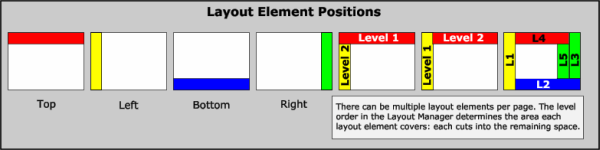
Layout Elements have a relationship with each other depending on their order or sequence. There can be multiple layout elements per page. The Level Order in the Layout Manager - Layout-tab determines the area each layout element covers.
Important:
Each Layout Element 'cuts into' the space remaining as shown in the illustration above.
Layout Elements are applied to the website in their sequence order in the Layout Manager.
Note:
Changing the position of a Layout element will affect how it relates to the other Layout Elements with regard to how it 'cuts into' the available space.
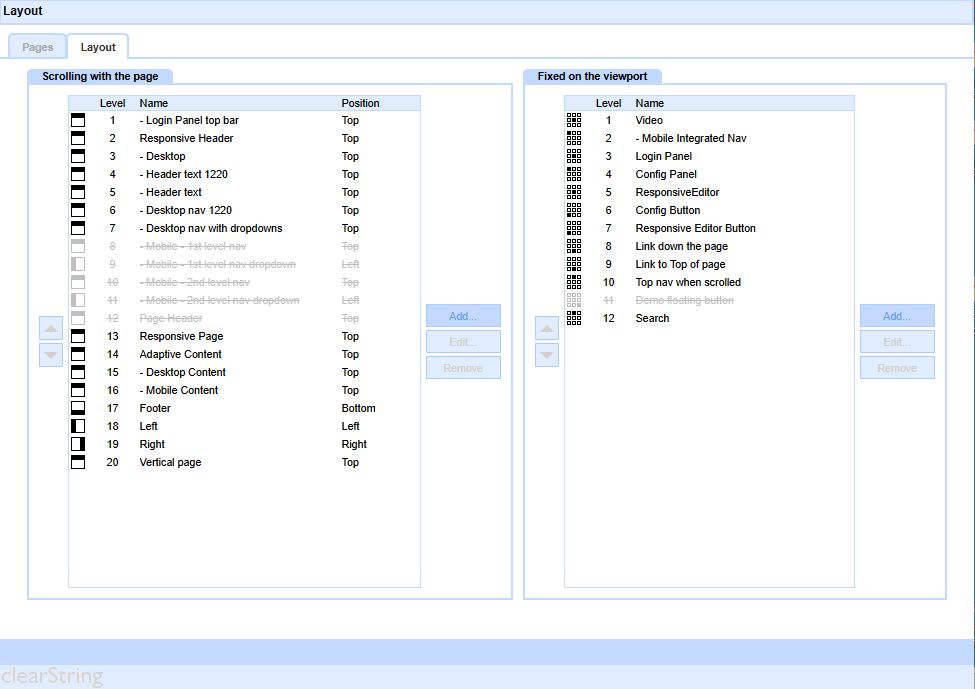
The symbols in the Left Column indicate the position of the Layout Element on the page.
Element IDs
In certain advanced troubleshooting situations it is advantageous to know exactly which element is being used.
In the Layout Manager, Behavior Editor | Settings | Options you can enable Layout Element IDs
.png)
and the unique element ID will be displayed in a new column.
.png)
Enable/Disable Displayed Elements
The Behavior Editor | Settings | General Options for each page controls whether or not a Layout Element is used on a section-by-section, or page-by-page basis. Standard inheritance rules apply..png)
Attributes
Layout Elements have a number of attributes they can possess, which are managed using the Layout Edit control. Layout Elements can be:
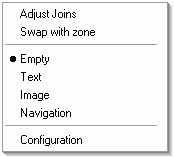
- Empty
- Contain Text
- Contain an Image
- Contain Navigation
Position Control
- Scrolling with the Page
- Fixed on the Viewport
.png)
Display Rules
- Add to Page and User Group Visibility
- When added to the Page - Position Controls
.png)
Design Notes
Design Notes enable the designer to document how the Layout Element is intended to display.
Advanced use of the display of Layout Elements is key to sophisticated design and User Experience.
This tab provides guidance for subsequent operators or for debugging unexpected effects.

Copyright © 2026 Enstar Systems Inc. All rights reserved |