 |
clearString neatComponents
|
|
clearString neatComponents Component Bank |

| ||
| Reference | |
Component Bank | ||
| |
The Layout Manager's Pages tab provides functionality to manage the structure of the site.
The system administrator can set the site to either run in Manage Bank or All Components mode.
All Components
In this mode there is no restriction on how many instances or which components are made available to site developers*
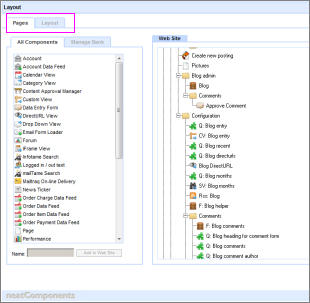
Manage Bank (shown below)
In this mode the individual site developer can be given a restricted sub-set of components to work with. This enables the system administrator to control the type of site that can be built - say, for contractual reasons, or to restrict inexperienced staff access to certain components.
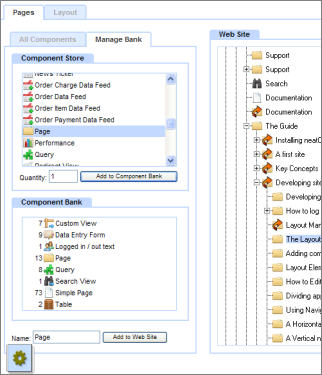
In this mode the Left-hand side of this tab contains two lists:
- Component Store
- Component Bank
This provides a two stage 'delivery mechanism' for adding components in to the website tree. There are two stages to this process to provide the flexibility to restrict some administrators ability to add certain components.
The Component Store lists out the various types of component, and can be thought of as containing an infinite quantity of each component.
To make use of a component, you need to add it to the Component Bank:
- Select the component type in the Component Store
- Enter the quantity you want
- Click 'Add to Component Bank'
The Component bank will then list that component name, with the quantity now available for use on the site shown in brackets after the name.
* For example, you may have created an app for a client with a set of components, and while you are happy for them to manipulate the app, you don't want them to add more components without paying you an extra fee.
Enabling Manage Bank
To enable the Mange Bank functionality you first need to create a User Group for this purpose in the User Group Manager.
The new User Group, in this example Bank User, will then appear in the Behavior Editor for all components.
.png)
In the Behavior Editor of the Layout Manager itself set the permissions to Allow:
[x] View Page
[x] Purchase Components
[x] Edit Components
Members of the User Group called Bank User will now not see the All Components tab, and will only have access to the Bank of components.
As additional User Groups beyond the built-in ones have zero permissions when launched you will need to add the 'View Page' permission to all components you want the Bank User to be able to see and use. This procedure is straightforward.
Open the Behavior Editor of the Globe Note at the top of the Web Site tree in the Layout Manager. You can set the default permissions of each component displayed in the left pane of the Behavior Editor. Set this to [x] View Page and the permission will inherit down to all instances in the tree.
You should not need to apply it individually.
Copyright © 2026 Enstar Systems Inc. All rights reserved |