 |
clearString neatComponents
|
|
clearString neatComponents Using Custom Fonts |

| ||
| How-to Resources | |
Using Custom Fonts | ||
| |
Using Custom Fonts
neatComponents gives you easy access to a number of fonts via the Behavior Editor - Style section. These are built into the system, and are ready to be used.
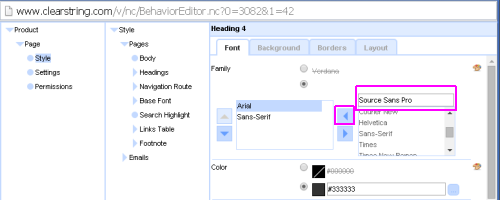
The Behavior Editor is a powerful CSS interpreter that also makes it easy to include other fonts - custom fonts - of your own.
Read about auto scaling fonts....
Call the font or Install the font
There are two methods of accessing custom fonts. You can call the font on use from an online repository such as Google Fonts, or you can install the font within the application.
Calling the font is a simple procedure, but it relies on the responsiveness of the remote server and the Internet connection. In most cases these services are responsive enough not to cause a significant delay in rendering the page.
In situations where you do not have direct Internet access - say in an intranet application - or where the connectivity is poor you can install the font within the system.
How to call a custom font
Select your desired font from a repository - Google Fonts is a useful source.
This example uses Roboto from Google Fonts.
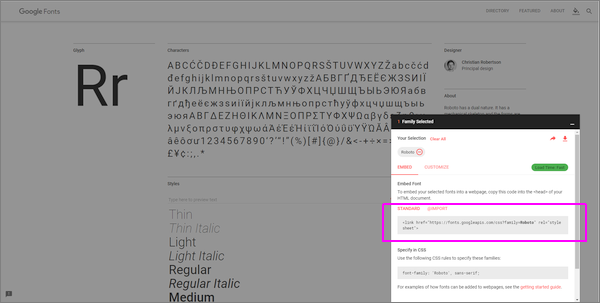
Find the embed code:

Copy it, and modify it slightly by removing the https: thus:
<link href='//fonts.googleapis.com/css?family=Roboto' rel='stylesheet' type='text/css'>
And place it in one of the Script setting dialogs in the Behavior Editor | Settings
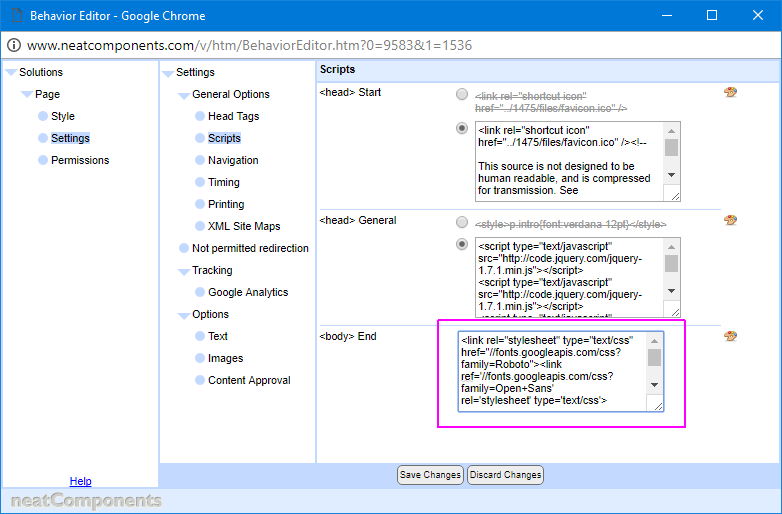
Note that you can include more than one font, as shown in the example.
The font is then called in the Style section of the Behavior Editor for the component, by writing it in to the highlighted box and clicking the [<] arrow to make it available.
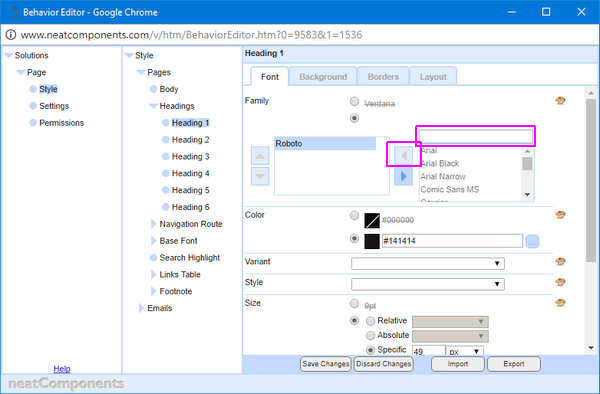
Normal Style inheritance rules apply so this Font will be available to all children of the component.
Applying the custom font to the highest point of the Layout Manager tree (Globe Behavior editor) makes it available to all children of that Component type.
How to install a custom font
The rest of this KB article uses as an example a Font with a commercial free-to-use license: Source Sans Pro from FontSquirrel, but there are many other sources of fonts.
A key aspect is that to enable the best cross browser compatibility you need to obtain and upload the .eot, .svg, .ttf and .woff files for each of the faces you will be using. Your font supplier should provide those, or they may have a webkit for generating them on demand.
Upload
Use an Upload Component to upload the font files.
In this example we are uploading:
indicating that the required path is: /10/files/
The @font-face format is:
The @font-face content needs to be placed inside a <style></style> tag and inserted into the Behavior Editor, Settings, Scripts section ...thus:
@font-face {
</style>
CLAMP - controlling font scaling
clamp() creates fluid typography by scaling font size between a minimum and maximum value based on viewport width.
Clamp ensures text remains legible on small screens and balanced on large ones.
Clamp works directly on the CSS font-size control with an instruction: clamp(min, preferred, max)
For example: clamp(14px, 2.5vw + 8px, 16px)
There are 3rd-party calculators to help you decide on your best settings - here... or here...
How to apply CLAMP values
Open the Behavior Editor | Styles and select the Style you want to work with.
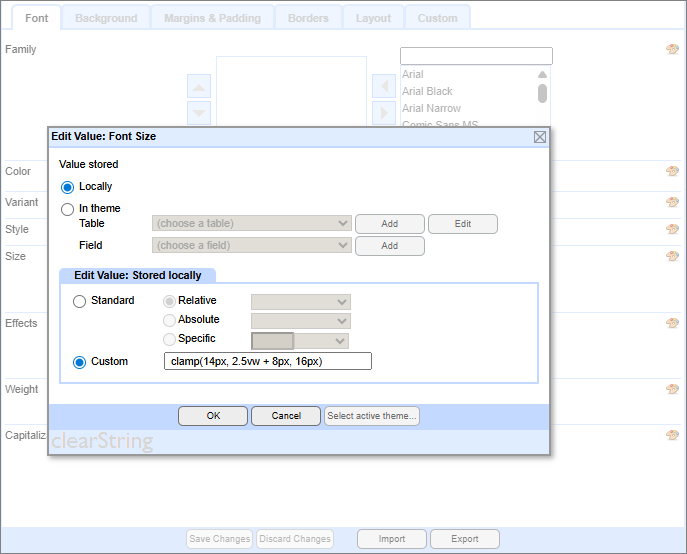
Select the Palette icon to the right, and then enter the values in the Custom box.
Set Line Height
It is essential to set the Line Height to Specific 1.5 unitless to allow correct scaled spacing.
.png)
Make sure that the blank value is selected in the Units dropdown.
The same applies for ad hoc usage if you are not using the Theme System (described below).
Using Themes System
You may want to apply CLAMP throughout your application, and you can use the Themes System to do this.
.png)
.png)
Copyright © 2026 Enstar Systems Inc. All rights reserved |