 |
clearString neatComponents
|
|
clearString neatComponents Embed Custom View |

| ||
| Application Development | |
Embed Custom View | ||
| |
Custom Views of Queries allow you to construct complex apps and web pages quickly and easily.
The Custom View works by applying control parameters so that as you link to them the information displayed is restricted down from all the possible combinations of the data to just the information you need for that particular purpose.
In the following example we are going to link from the simple Grid view we constructed earlier to a Custom View embedded on the 'Section 3' we added previously to show just the details of the person selected.
Add a Custom View
Add a Custom View (CV) component to the Config section of the Site, just as we did before for the Table and Query.

Then open the CV component in a new tab, and assign the CV to your Q: Email Query.
And click Apply.
.png)
Then go to 'Second Page in Section 3' and embed the Custom View, by first embedding the Query...
You will have noticed that this option was not previously offered because you had not yet added the Custom View and associated it with this Query.
.png)
... and then setting the output to use CV: Email.
.png)
And remember to click the Save button.
If you now use the 'front of house' navigation to view 'Second Page in Section 3', it will still be blank.
That is because although we have embedded the CV on the page we have not yet set any Records Criteria to say what it displays.
Selecting Records
In the Query, select the 'Records-tab'. Set the Query to offer All Records where the Record Id is Equal to the Parent Parameter.
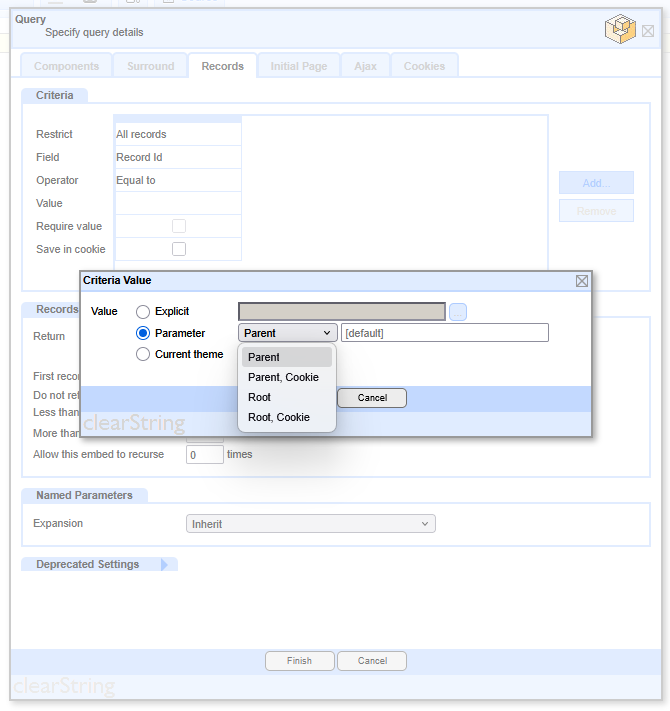
This will have the effect of offering all the records to be displayed.
Be sure to set the 'Records to return' to [x] All Records.
Then click [Finish], to return to the page Text Editor, and then Save.
Building the Custom View
So, now visit the same page while you are logged on, edit the page. You will see the Query you embedded earlier.
Right-click to access its properties at 'Edit Embed' and in the Output section click the Edit... button.
.png)
When the CV: Email opens select the text Surfaces tab.
.png)
Then double-click on the Records surface, to construct your Custom View layout.
Add some standing text, and the fields to display by dragging them them the Embeds Panel, or using the Embed tool and selecting the field.
.png)
Now when you revisit the Second Page in Section 3 where you embedded the Custom View you will see something like this:
.png)
Using Criteria
In most cases when you are building apps you are not wanting to expose all records but are wanting to 'criteria down' the output to match a particular requirement.
In this example we are going to restrict the records offered in the view to those starting with the letter 'A'. It is a very simple example but introduces you to the toolset available.
.png)
Add another Criteria column and then set it to return All records when the field First Name begins with 'a'.
Then OK and Save back to the Page. You will now see your display restricted to only the one entry for 'Ann'.
As you see from this example Criteria can be chained together to work as logical AND arguments - all the premises must be true for the result to be available.

Below the line
More information
The system gives you great control over how data is formatted, but is also very easy to use. You will have noticed that there was very little configuration required to restrict the display to the selected records, and the parameters necessary are inferred by the system.
Dialogs are context aware
The dialogs that control the behavior of the system are context aware. This means that you are presented with only the controls you need for the task in hand. As your task changes, so the available controls change - automatically.
As you build more advanced applications the appropriate control dialogs will become available. You are never faced with a large array of confusing controls.
It uses a lot of hidden 'cleverness' to make your task as a designer easier, the inferred parameters is one example - here is another.
Go to the Support page and add in another 'visitor', only this time 'forget' to enter the email address - and submit the record. Now go to 'Section 2' and click on your new visitor's Last name. No email address is shown - OK - but note is the 'prompt' is not there either. So, if the entry is blank its prompt is automatically suppressed; keeping your finished display crisp. And many, many, more...
Creating your first app In this section |
|
Creating your first app
We learn how to use a Custom View to give us greater control over data visualisation. We learn how to use criteria to define which information to display. In this section: |
|
 What are we learning here?
Copyright © 2026 Enstar Systems Inc. All rights reserved |